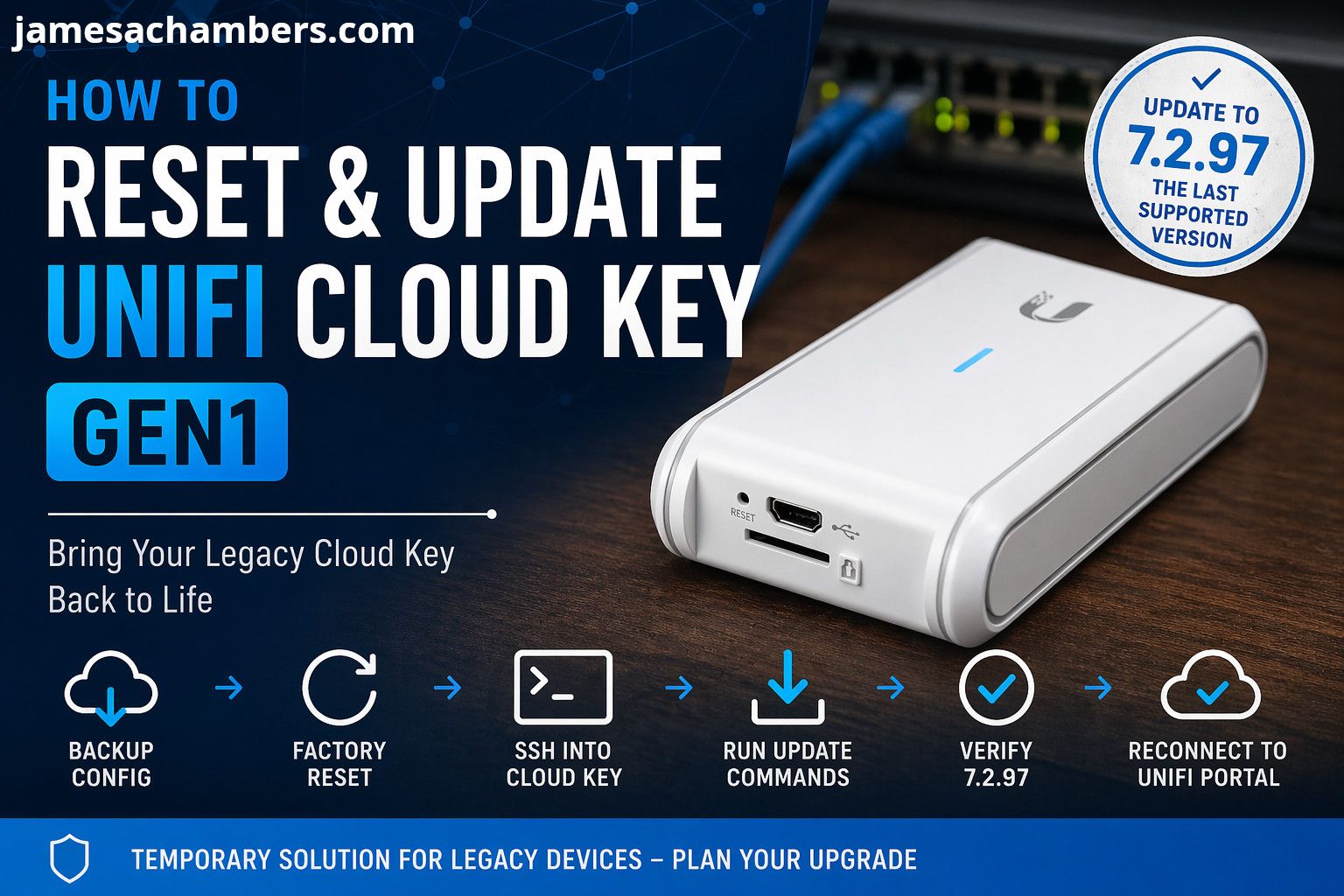
If you manage older UniFi environments, you’ve probably run into a frustrating issue: legacy Cloud Key Gen1 devices that are too outdated to connect to the UniFi Portal. This can leave you completely blind when trying to manage a client’s network.
After working with many of these devices in production environments, here’s a practical, step-by-step guide to resetting and updating a UniFi Cloud Key Gen1 so it can be brought back into a manageable state.
Before You Start
If possible, replace the Cloud Key Gen1 with a newer model (preferably one with SSD storage). The older HDD-based units are prone to failure and performance issues. Here is the one I recommend (UCK-G2-SSD):
If upgrading isn’t an option, proceed with the steps below.
Step 1: Attempt Access via SSH
To update the device, you’ll need SSH access.
- Use an SSH client (like PuTTY or Terminal)
- Connect to the Cloud Key’s IP address
Default credentials (after reset):
username: root
password: ubnt
If you still have the original credentials, use those instead.
Step 2: If You Don’t Have SSH Access
If the root password is unknown:
- Log into the UniFi web console (if accessible)
- Export the current configuration:
- Go to Settings → System → Backup
- Download a backup file
- Perform a factory reset on the Cloud Key:
- Hold the reset button until the device reboot
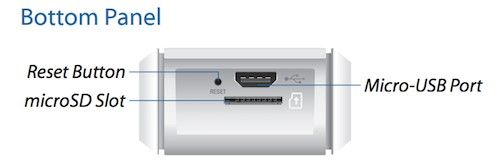
After reset, SSH credentials will revert to:
root / ubntStep 3: If the Device Is Completely Broken
Some Cloud Keys fail due to:
- Full internal storage
- Corrupted system state
Symptoms:
- SSH login fails even with correct credentials
- Web UI is unresponsive or inaccessible
Solution:
- Export config (if possible)
- Perform a full factory reset
- Reconfigure from backup after recovery
Step 4: Update the Firmware via SSH
Once you’ve successfully logged in via SSH, run the following commands:
wget https://dl.ui.com/unifi/7.2.97/unifi_sysvinit_all.deb
dpkg -i unifi_sysvinit_all.deb
What this does:
- Downloads the latest supported UniFi version for Gen1
- Installs it manually (bypassing outdated update paths)
Step 5: Wait for Installation
- The upgrade will take several minutes
- Wait until the terminal becomes responsive again
- Do not interrupt the process
Step 6: Verify the Upgrade
- Refresh the UniFi web console
- Confirm the version is now 7.2.97
This is the final supported version for Cloud Key Gen1 devices.
Step 7: Reconnect to UniFi Portal
Once updated:
- The device should now be able to connect to the UniFi Portal (for now)
Note: Support for Gen1 devices may be discontinued at any time.
Final Thoughts
This method provides a temporary way to extend the life of a Cloud Key Gen1, but it’s not a long-term solution.
I’ve been telling my coworkers (and clients who have not upgraded yet) for years that this is a temporary solution and that Unifi could block access to this old controller at any time. That still has yet to happen though so until then you can use this guide to fix and rejoin these devices to the Unifi portal!
Key takeaways:
- Version 7.2.97 is the last supported release
- Portal compatibility may disappear in the future
- Hardware failure (especially HDD models) is common
Best practice: Plan for replacement sooner rather than later.
Quick Summary
- Backup config if possible
- Factory reset if needed
- SSH into device
- Run manual update commands
- Verify upgrade to 7.2.97
- Reconnect to UniFi Portal
If you’re managing multiple legacy environments, documenting credentials and maintaining backups will save you significant time when dealing with aging hardware like this!
How do I factory reset a UniFi Cloud Key Gen1?
Hold down the physical reset button on the device until it reboots. If the web console is still accessible, export your configuration backup first to avoid starting from scratch.
What are the default SSH credentials after a reset?
The default login is
rootwith the passwordubnt.What is the final supported firmware version for Cloud Key Gen1?
Version
7.2.97is the last supported release. You must manually install it via terminal usingwget https://dl.ui.com/unifi/7.2.97/unifi_sysvinit_all.debfollowed bydpkg -i unifi_sysvinit_all.deb. Do not interrupt the process while waiting for the terminal to respond.