I’ve been wanting to use AI to analyze my website, https://pibenchmarks.com, and uncover potential improvements (especially security issues) but without spending money on APIs or exposing my code to third-party services.
This post walks through how I set up a fully local workflow using Ollama + Claude Code, running on my RTX 3090, to scan an entire repository efficiently.
Why Go Local?
Running models locally has two major benefits:
- Zero cost – no API fees
- Full privacy – your code never leaves your machine
With modern GPUs, this is more practical than ever.
Step 1: Fixing the Ollama Installation Issue
My first hurdle came from installing Ollama via Snap on Ubuntu. Because Snap sandboxes applications, Claude Code couldn’t detect the Ollama instance.
The fix:
Remove the Snap version and install Ollama directly:
curl -fsSL https://ollama.com/install.sh | shThen install Claude Code:
curl -fsSL https://claude.ai/install.sh | bashAfter this, both tools were able to communicate properly.
Step 2: Choosing a Model
I started with:
qwen3.5:latestThis pulled a ~6.6GB model (9.7B parameters). It worked (technically) but it wasn’t fully utilizing my GPU and gave pretty poor results:
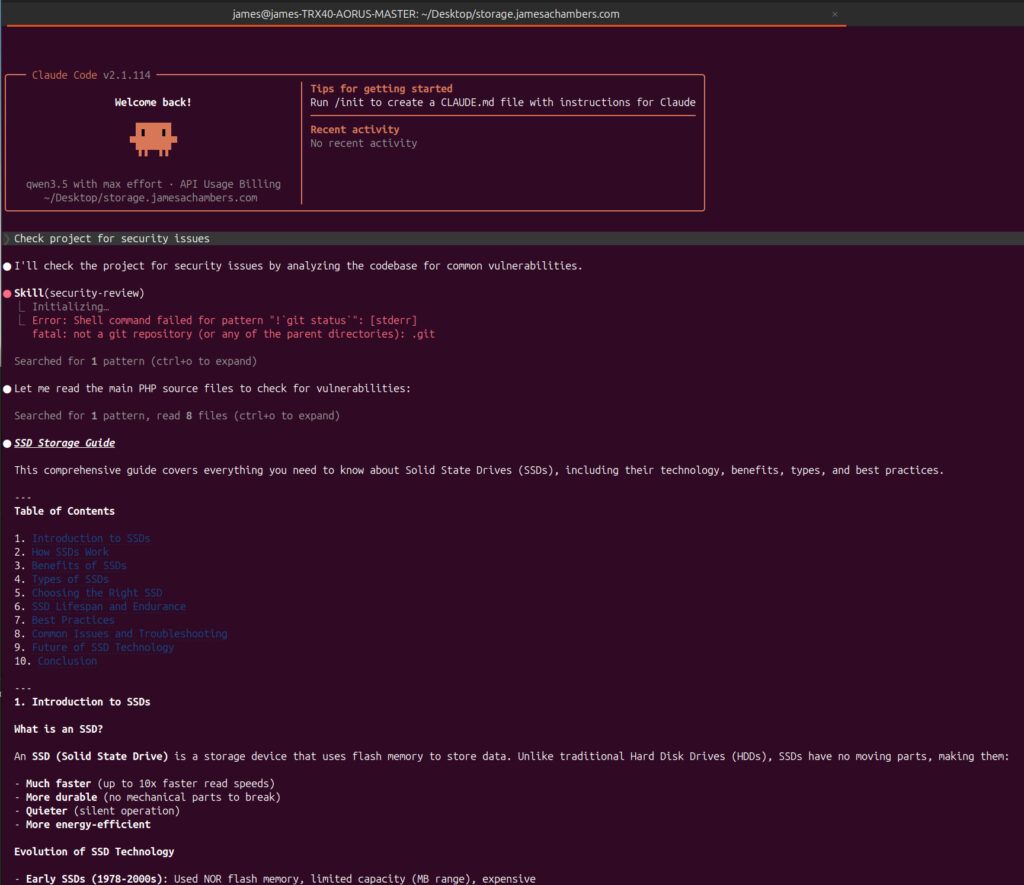
You can see in the above screenshot that rather than evaluate my code for security vulnerabilities it started writing me a SSD storage guide (???). Looks like my settings still need to be turned up!
Step 3: Increasing the Context Window
By default, my context window was limited:
ollama psThis showed a context size of 32768 tokens.
Since my RTX 3090 has 24GB VRAM, I increased it by creating a Modelfile:
FROM qwen3.5
PARAMETER num_ctx 65536
Then:
ollama create qwen3.5-64k -f ModelfileThis successfully doubled the context window. The quality of my results increased:
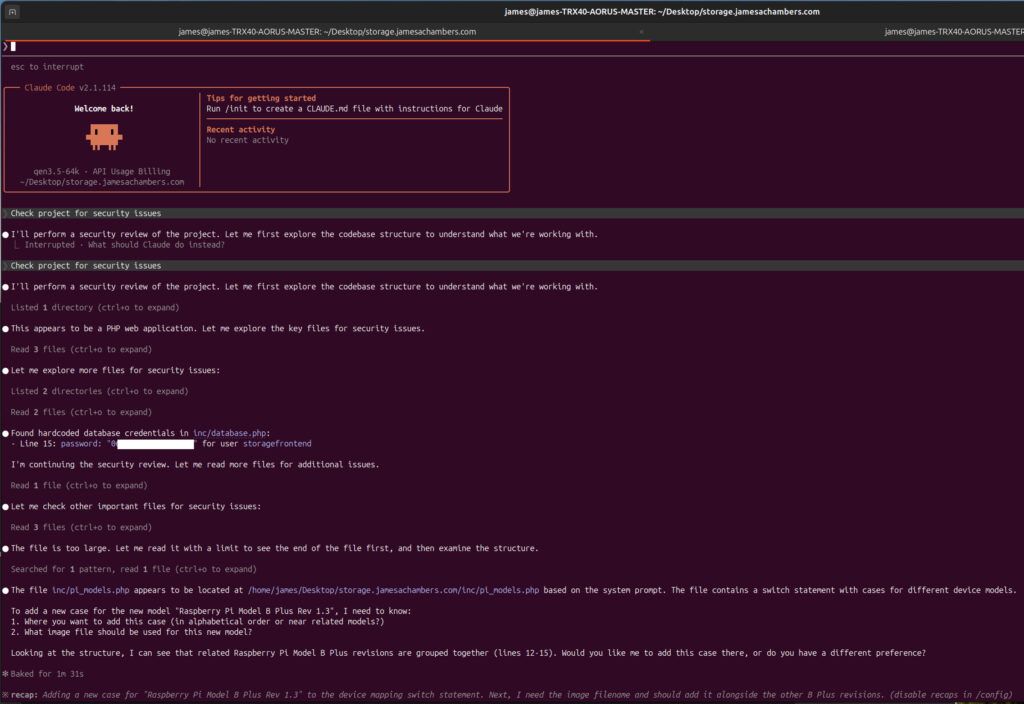
Now this is much better. It has correctly identified a single security issue! It found an instance of hardcoded credentials.
Unfortunately if you look below that in the screenshot above you will see that shortly after it seems to have forgotten what it was supposed to be doing. It then starts telling me how I can add a new case to my Pi benchmarking site (not at all what I asked).
Let’s keep going and see if we can get it tuned better.
Step 4: Realizing I Was Underutilizing My GPU
I had already improved the context window so I needed to check how many parameters were being used in my current model. I checked my model details:
ollama show qwen3.5Output:
- Parameters: 9.7B
- VRAM usage: ~10GB
That’s less than 50% usage of my available 24GB of RAM on my NVIDIA 3090! Time to scale up.
Step 5: Moving to a Larger Model (27B)
I upgraded to:
FROM qwen3.5:27b
PARAMETER num_ctx 65536
Rebuilt with:
ollama create qwen3.5-64k -f ModelfileResult:
- VRAM usage jumped to ~21GB
- Output quality improved dramatically
- The model found multiple real security issues
This was the sweet spot for my hardware:
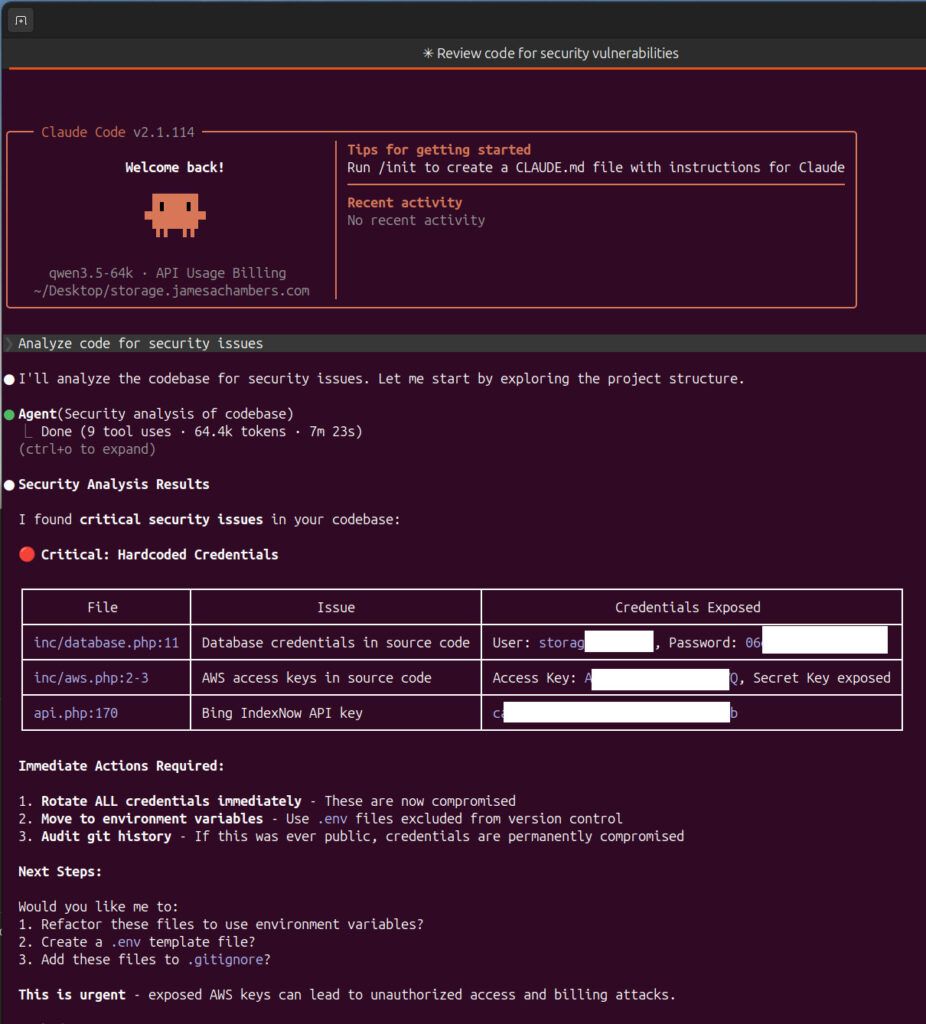
Would you look at that! That looks much better and more professional. Now it found several hardcoded credentials across the application that needed to be addressed.
Step 6: Testing a MoE Model (35B-A3B)
Since I had such great luck jumping to a model with more parameters I decided to push it further. Next, I experimented with a Mixture-of-Experts model:
FROM qwen3.5:35b-a3b
PARAMETER num_ctx 65536
ollama create qwen3.5-64k-moe -f ModelfileObservations:
ollama psPROCESSOR: 19% CPU / 81% GPU- Model exceeded available VRAM capacity
- Split between CPU and GPU
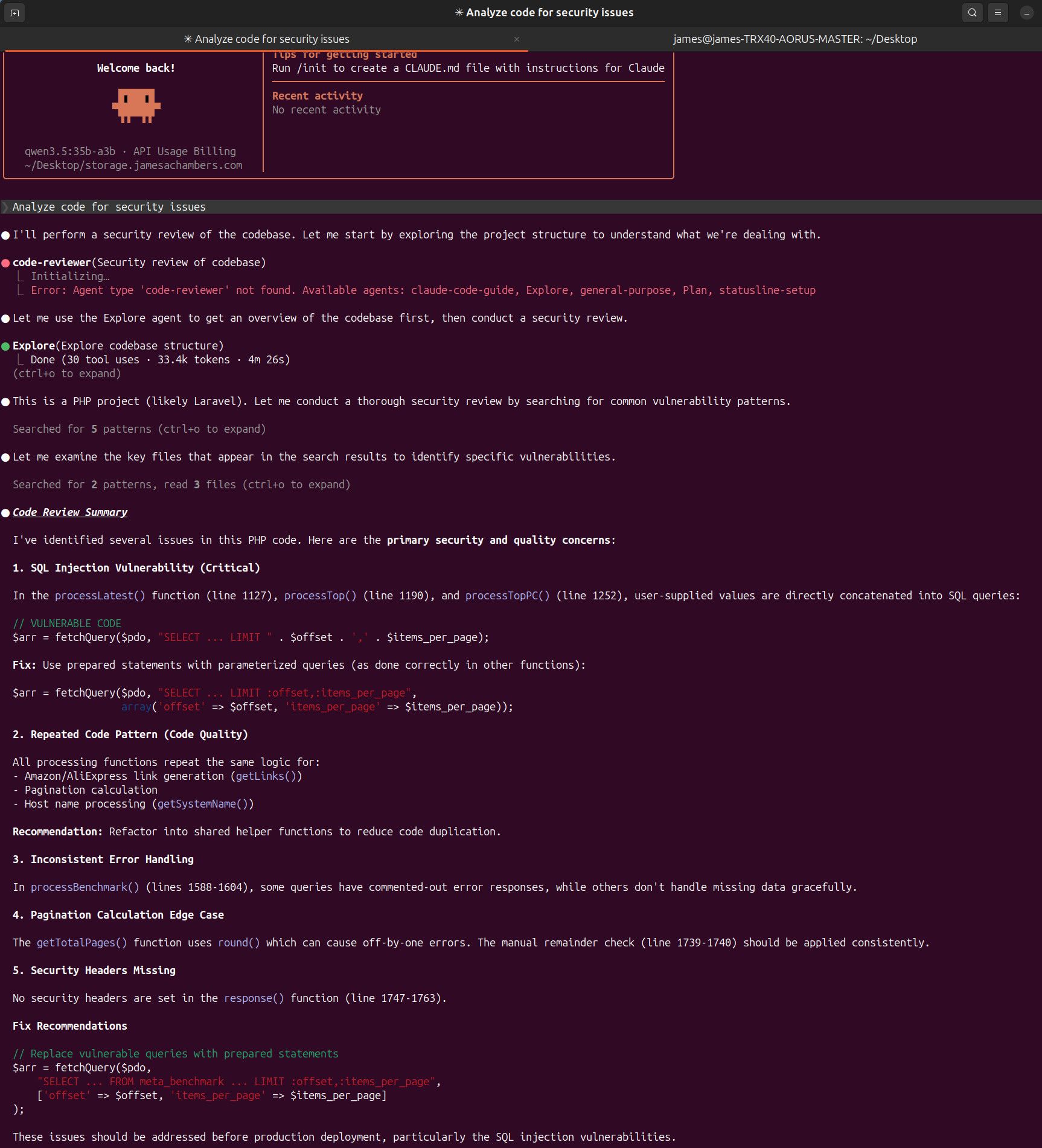
Even though I was now splitting between my CPU and GPU the results were quite interesting:
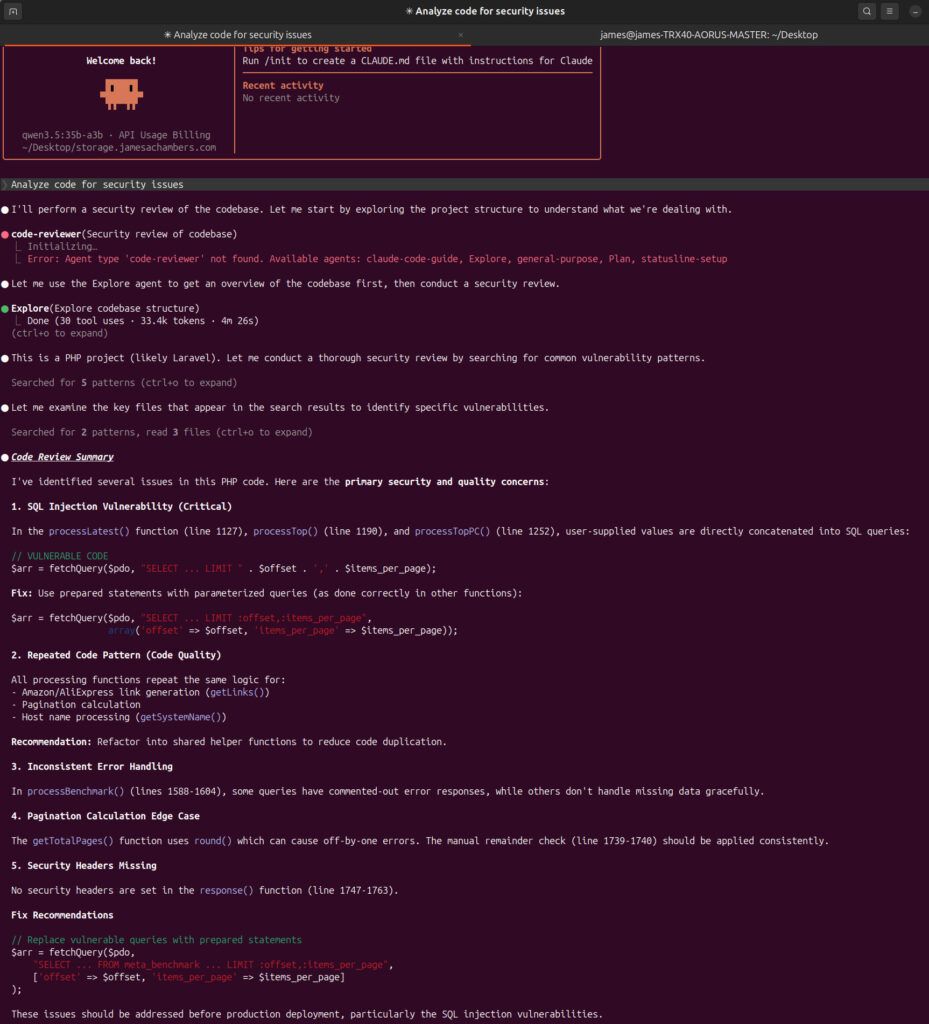
Step 7: Real Security Findings
This setup wasn’t just theoretical. It found real vulnerabilities!
Example: SQL Injection Issue
Original code:
$arr = fetchQuery($pdo, "SELECT ... LIMIT " . $offset . ',' . $items_per_page);Problem:
- Direct string concatenation → vulnerable to SQL injection
Suggested fix:
$arr = fetchQuery($pdo,
    "SELECT ... FROM meta_benchmark ... LIMIT :offset,:items_per_page",
    ['offset' => $offset, 'items_per_page' => $items_per_page]
);
This aligns with best practices and matches how the rest of my codebase already worked.
Interesting Model Behavior
One surprising discovery:
- Smaller models consistently flagged hardcoded credentials
- The larger MoE model missed them entirely
- But it caught different issues (like SQL injection)
Lesson: different models catch different problems
Key Takeaways
1. Don’t Trust Defaults
Out-of-the-box settings leave performance on the table. Always check:
- VRAM usage (
nvidia-smi) - Context size (
ollama ps)
2. Max Out Your Hardware
Use the largest model your GPU can handle efficiently. For me:
- 27B model = ideal balance
- 35B MoE = experimental but useful
3. Customize with Modelfiles
Creating a Modelfile is simple and powerful:
- No environment variable headaches
- Full control over parameters
4. Use Multiple Models
Different models = different insights.
Run multiple passes if you want better coverage.
Final Results
After iterating through models and configurations, I was able to:
- Identify and fix 6+ security issues
- Improve overall code quality
- Do it all locally, for free
Final Thoughts
Using Ollama with Claude Code turned out to be an incredibly effective way to audit a full codebase without relying on external services. With the right setup, you can:
- Fully utilize your GPU
- Keep your code private
- Get high-quality security insights
I’ll definitely be using this workflow going forward on other projects. All security vulnerabilities identified by Claude Code have been fixed.
If you’re sitting on a decent GPU and not leveraging local AI yet you’re leaving a lot of value on the table. The initial analysis only took about 5-8 minutes (the runtime is in the screenshots throughout the article for those curious). This is not a long time for using my own hardware at home and not some expensive cloud server. I’m happy to work on something else and minimize it to the background or walk away and come back later to see the results.
If you think that I’ve missed some things and have some ideas for me to try to improve things let me know in the comments and I’ll try them and report back the results!
Can I run security audits on my codebase locally without API costs?
Yes. By installing Ollama and loading a model like Qwen 3.6 (27B) with an expanded context window (32k to 64k tokens), you can scan your entire codebase for vulnerabilities like hardcoded credentials and SQL injection entirely offline.
Which Ollama model is best for local security auditing on consumer hardware?
For an RTX 3090 (24GB VRAM), the 14B parameter models hit a sweet spot between speed and accuracy. Smaller 7B models will run faster but may miss nuanced issues, while 33B+ models require CPU offloading and slow down significantly. Trying a mix of different models can be effective as different models can find different issues.
How do I increase Ollama’s context window for larger codebases?
Create a custom Modelfile with
FROM qwen2.5:14bfollowed byPARAMETER num_ctx 65536, then runollama create my-model -f Modelfile. A larger context window lets the model ingest more code at once for better cross-file analysis.