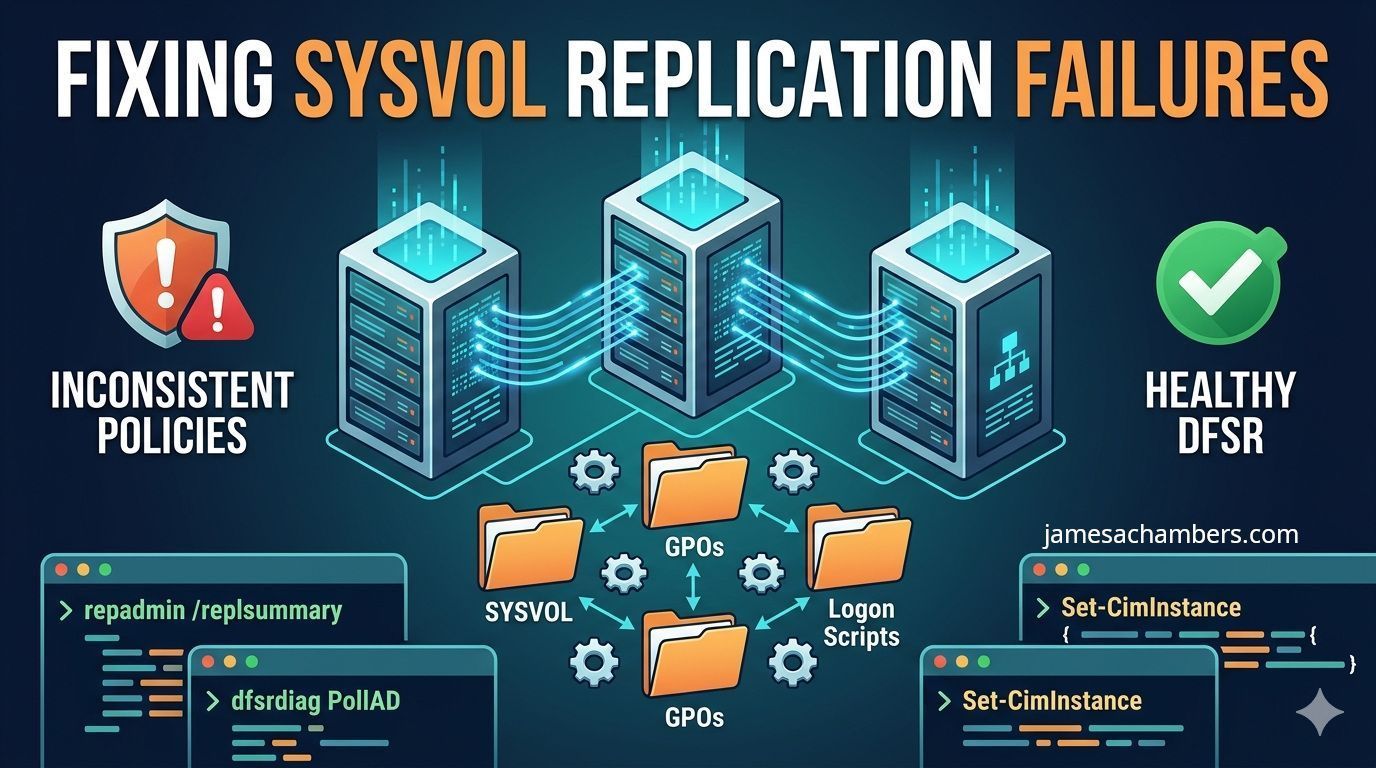
SYSVOL replication failures are one of the domain controller problems that keep IT teams up at night. When SYSVOL stops replicating correctly, Group Policy Objects (GPOs) stop updating, logon scripts fall out of sync, and domain controllers begin serving inconsistent policy data.
It’s important to separate this from Active Directory replication issues:
AD replication (NTDS) handles users, groups, password changes, and directory objects
DFSR (Distributed File System Replication) handles SYSVOL contents like GPO files and scripts
If passwords aren’t replicating, that’s an AD replication problem. If GPOs aren’t applying consistently, that’s usually a SYSVOL/DFSR problem.
This guide focuses on the most common DFS Replication failure scenarios and the safest ways to fix them.
Before fixing anything, determine whether the issue is Active Directory replication or DFS Replication.
Check Active Directory replication
repadmin /replsummary
This shows which domain controllers are replicating successfully and which are failing, along with the time of last successful replication.
If AD replication is healthy but GPOs are inconsistent, the issue is likely DFSR/SYSVOL rather than NTDS replication.
You can also force AD replication manually:
repadmin /syncall /AeP
Useful flags
/A = sync all naming contexts (all partitions)
/e = enterprise-wide (cross-site)
/P = push changes outward from this DC
This affects AD replication (not DFSR directly) but DFSR depends on AD replication to receive configuration updates.
Force DFSR to reread configuration from AD
dfsrdiag PollAD
This tells the DFS Replication service to immediately re-read its configuration from Active Directory instead of waiting for the normal polling interval.
This is often useful after fixing replication topology or restoring connectivity.
Check DFSR replicated folder state
wmic /namespace:\\root\microsoftdfs path dfsrreplicatedfolderinfo get replicatedfoldername,replicationgroupname,state
Common state values:
0 = Uninitialized
1 = Initialized
2 = Initial Sync
3 = Auto Recovery
4 = Normal (healthy)
A healthy SYSVOL replication state is usually 4.
If a DC remains stuck in 2 or 3, further investigation is needed.
Check DFSR machine configuration
wmic /namespace:\\root\microsoftdfs path dfsrMachineConfig get MaxOfflineTimeInDays
This shows the offline threshold before DFSR stops normal replication and requires recovery.
Fix 1: Resume DFS Replication After Long Offline Periods
One of the most common DFSR failures happens when a domain controller has been offline too long.
By default, DFSR commonly triggers protective behavior after extended offline periods (often associated with Event ID 4012). This prevents stale SYSVOL data from replicating automatically.
The correct recovery path is usually:
determine whether the server needs a non-authoritative restore
or, in rare cases, an authoritative SYSVOL restore
Do not treat this as a normal “resume replication” issue.
As a temporary emergency measure, some administrators extend the offline threshold:
Do not use dfsrmig /setmigrationstate as a repair step for broken SYSVOL replication.
That is a different workflow entirely.
Emergency Service Restoration (Use With Caution)
If GPO delivery is broken and business impact is immediate, some teams temporarily copy SYSVOL contents from a healthy DC to restore access to policy files.
wmic.exe /namespace:\\root\microsoftdfs path dfsrMachineConfig set MaxOfflineTimeInDays=180
Check migration status only
dfsrmig.exe /getmigrationstate
The safest rule with DFSR is simple:
Never use migration tools as repair tools, and never use file copy as your first fix.
Start with replication health, confirm the actual failure mode, and only escalate to authoritative/non-authoritative restore when normal recovery is no longer possible.