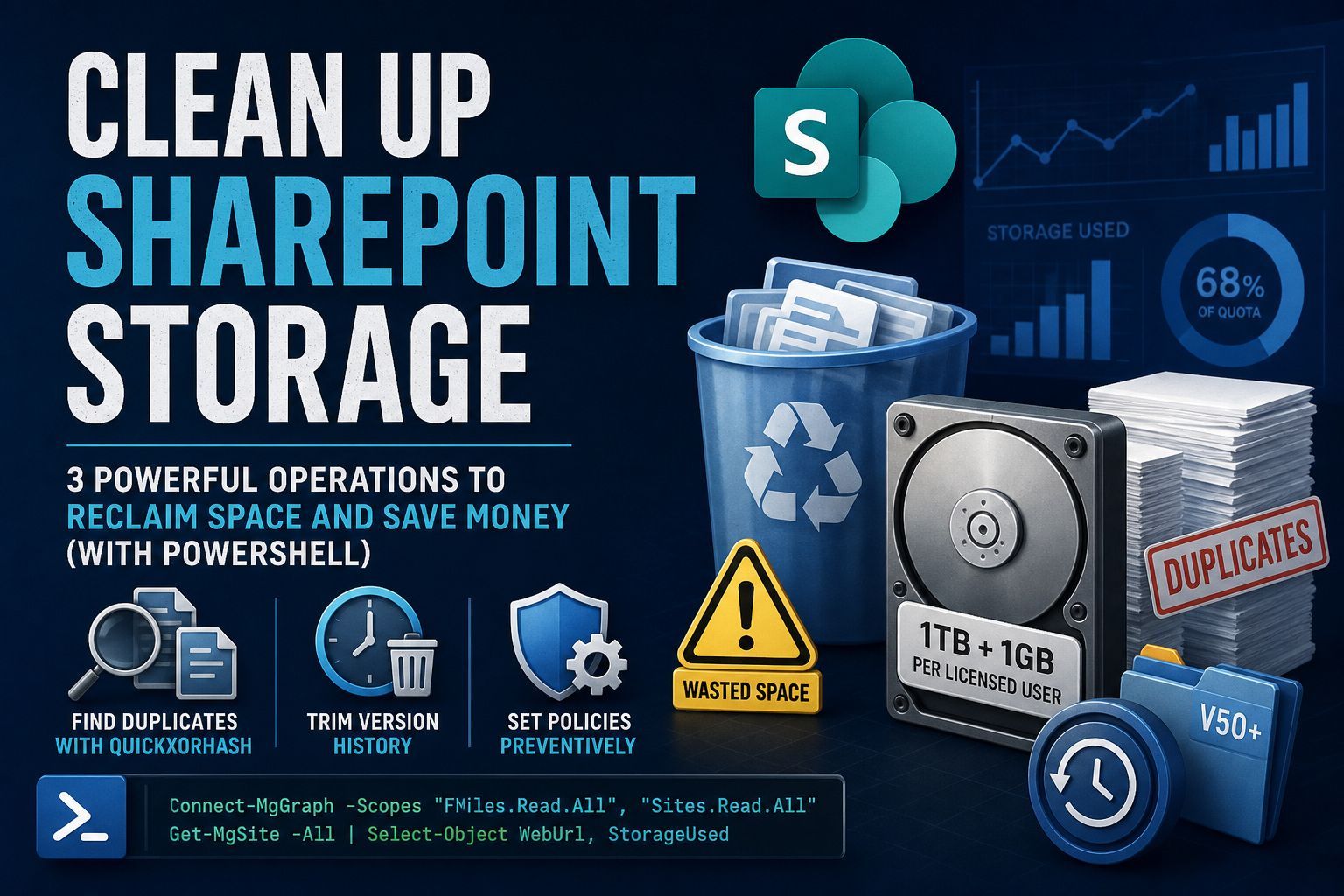
SharePoint storage is one of the most underestimated cost drivers in a Microsoft 365 environment. Microsoft gives every tenant 1TB of base storage plus 1GB per licensed user, but once you start hitting those limits, adding more storage costs money. And the storage you’re paying for is often largely wasted.
Duplicate files get copied across sites instead of linked. Version history grows unbounded — some files have 50+ revisions. Older file versions that no one will ever need keep consuming quota. Without active cleanup, these problems compound silently.
Here are the three cleanup operations I run on every tenant, and the PowerShell behind each one.
The first step is identifying what’s already duplicated. Microsoft Graph exposes a QuickXorHash on every file — a content hash that identifies identical files regardless of name or location. Grouping files by this hash reveals every duplicate set:
The key insight: QuickXorHash identifies files with identical content. Two PDFs with different names but the same content get the same hash. The script calculates how much space you’d save by keeping only one copy of each duplicate set.
Trimming Version History
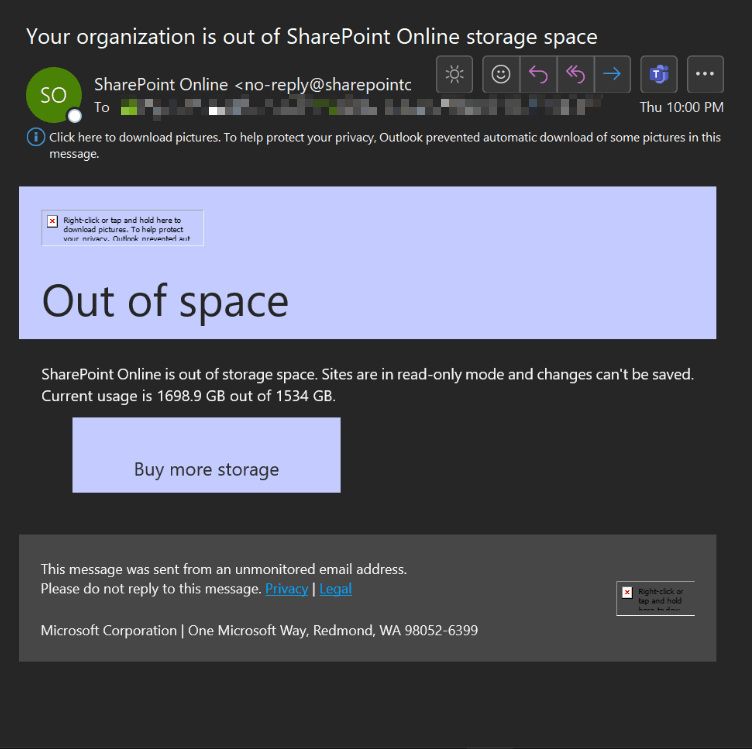
SharePoint – Out of Space Notification Email
Every edit to a file in SharePoint creates a new version. By default, SharePoint keeps all major versions and up to 512 minor versions. Over time, files accumulate versions that no one will ever need.
There are two approaches: the SharePoint batch job (which is the supported, recommended method) and the Graph API direct deletion (which gives more control but runs against the API rate limits).
Approach 1: SharePoint Online Batch Jobs
Microsoft provides New-SPOListFileVersionBatchDeleteJob specifically for bulk version cleanup. It runs asynchronously in the background and doesn’t hit API rate limits:
Connect-SPOService -Url "https://tenant-admin.sharepoint.com"

$sites = Get-SPOSite -Limit All

# Delete versions older than 30 days
foreach ($site in $sites) {
    Write-Host "Processing site: $($site.Url)" -ForegroundColor Cyan
    New-SPOListFileVersionBatchDeleteJob `
        -Site $site.Url `
        -List "Documents" `
        -DeleteBeforeDays 30 `
        -Confirm:$false
}

# Limit to last 30 major versions and 10 minor versions per file
foreach ($site in $sites) {
    Write-Host "Processing site: $($site.Url)" -ForegroundColor Cyan
    New-SPOListFileVersionBatchDeleteJob `
        -Site $site.Url `
        -List "Documents" `
        -MajorVersionLimit 30 `
        -MajorWithMinorVersionsLimit 10 `
        -Confirm:$false
}

# Check progress
foreach ($site in $sites) {
    Write-Host "Processing site: $($site.Url)" -ForegroundColor Cyan
    Get-SPOListFileVersionBatchDeleteJobProgress -Site $site.Url -List "Documents"
}
The batch job is the right approach for most tenants. It’s designed for this exact workload, runs in the background, and reports progress.
Approach 2: Graph API Direct Deletion
For more granular control — like deleting versions older than a specific date across all libraries in a site — the Graph API gives you the precision:
Before deleting anything, know how much space is tied up in older versions. This function calculates the total size of all non-current versions in a site:
function Get-SharePointVersionSize {
    param([string]$SiteUrl)

    $site = Get-MgSite | Where-Object { $_.Name -like $SiteUrl }
    if (-not $site) { Write-Host "Site not found: $SiteUrl"; return }

    $totalPreviousVersionSize = 0

    $lists = Get-MgSiteList -SiteId $site.Id | Where-Object { $_.List.Template -eq "documentLibrary" }

    foreach ($list in $lists) {
        Write-Host "Processing library: $($list.DisplayName)"

        $items = Get-MgSiteListItem -SiteId $site.Id -ListId $list.Id -ExpandProperty "DriveItem"

        foreach ($item in $items) {
            if ($item.DriveItem -and $item.DriveItem.File) {
                $versions = Get-MgDriveItemVersion `
                    -DriveId $item.DriveItem.ParentReference.DriveId `
                    -DriveItemId $item.DriveItem.Id

                foreach ($version in $versions) {
                    if ($version.Id -ne $item.DriveItem.Id) {
                        $totalPreviousVersionSize += $version.Size
                    }
                }
            }
        }
    }

    Write-Host "Total space used by previous versions: $([math]::Round($totalPreviousVersionSize/1MB, 2)) MB"
}
Setting Versioning Policies Preventatively
After you’ve cleaned up, prevent future bloat by setting version limits on every site. This is a one-time configuration that caps how many versions SharePoint keeps:
$sites = Get-SPOSite -Limit All

foreach ($site in $sites) {
    Set-SPOSite `
        -Identity $site.Url `
        -MajorVersionLimit 50 `
        -MajorWithMinorVersionsLimit 10
    Write-Host "Set version limits on $($site.Url)"
}
With these limits in place, no file can accumulate more than 50 major versions and 10 minor versions, regardless of how many times it gets edited.
The Cleanup Runbook
Here is the order I run these on a tenant that needs storage cleanup:
Measure — Run Get-SharePointVersionSize to establish a baseline
Find duplicates — Run Find-DriveItemDuplicates across key sites to identify waste
Delete old versions — Run the batch job or Graph deletion to remove versions older than your cutoff
Set version limits — Apply MajorVersionLimit to prevent future unbounded growth
Re-measure — Run Get-SharePointVersionSize again to confirm savings
Most tenants see 20-60% storage reduction from version cleanup alone. Duplicate cleanup depends on how messy the tenant is — some have near-zero duplicates, others have entire project folders copied across multiple sites.
Rate Limit Warning
Graph API direct deletion hits rate limits faster than batch jobs. If you’re deleting versions across a large tenant, you’ll get 429 Too Many Requests errors. The batch job approach is always preferred for large-scale cleanup because Microsoft runs it on the server side without counting against your API quota.
That being said it’s very nice to be able to manually clean the storage (especially below the minimum policy of 50 previous versions that Microsoft allows for retention).
How can I remove duplicate files in SharePoint efficiently?
PowerShell scripts using Microsoft Graph API or PnP/SPO cmdlets can scan document libraries, hash file contents, and identify/remove duplicates in bulk much faster than manual deletion.
Can PowerShell trim excessive document versions in SharePoint?
Yes, you can set version limits programmatically or use Remove-PnPFileVersion to clean up old versions. This frees up significant storage space and improves library load times.
Will deleting SharePoint versions permanently remove the file history?
Trimming versions removes older iterations from the version history. Always ensure you have offline backups or confirm with stakeholders if historical data is needed before running cleanup scripts.