Auditing External File Sharing in Microsoft 365 with PowerShell
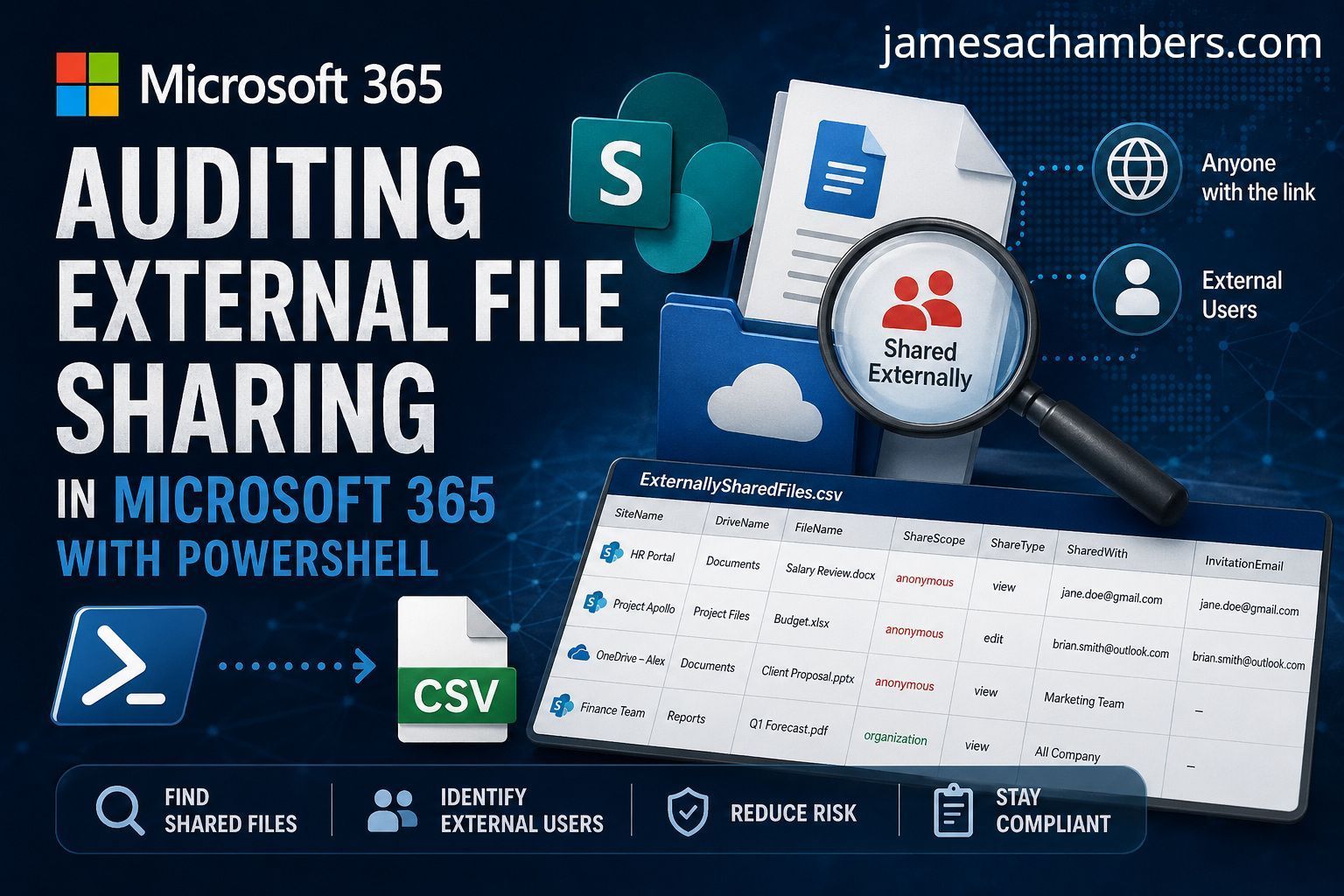
External sharing is a compliance nightmare. Your 365 tenant has dozens of SharePoint sites, each with document libraries, and files are shared via links or direct invitations. The SharePoint admin center shows you a high-level sharing policy per site, but it won’t tell you which specific files are shared externally or with whom.
I wrote a script that walks every site, every drive, and every file in your tenant using the Microsoft Graph API, then exports a CSV of every externally shared file with who it’s shared with.
The older PnP PowerShell modules can tell you about site-level sharing settings, but file-level permission details require Graph. The Graph endpoints for drive items and permissions give you the actual invitation emails, link scope, and grantee identities.
Prerequisites
You’ll need the Microsoft Graph PowerShell SDK and an account with at least Sites.Read.All and Directories.Read.All scope:
The -Filter "Shared ne null" clause is server-side and dramatically reduces the result set. Without it, you’d be pulling every file in every library just to check a flag. The -PageSize 5000 maximizes the batch size to reduce API round trips.
Step 4: Inspect Permissions
For each shared item, the script pulls the detailed permissions and checks two conditions:
Direct invitations — someone outside the organization was explicitly invited ($permission.Invitation.Email)
External links — a sharing link was created with a scope broader than "organization" ($permission.Link.Scope)
$permissions = Get-MgDriveItemPermission -DriveId $drive.Id -DriveItemId $item.Id

foreach ($permission in $permissions) {
    if ($null -ne $permission.Invitation.Email -or
        ($null -ne $permission.Link.Scope -and "organization" -ne $permission.Link.Scope)) {
        # This file is shared externally
    }
}
Step 5: Resolve Grantees
Graph returns grantee information in one of two property paths depending on how the file was shared. The script checks both:
This captures users, applications, and devices that have been granted access.
Step 6: Build the Report
Each externally shared file becomes a structured object with the site name, drive name, file name, share scope, share type, web URL, and grantee details:
This script is thorough, not fast. For a large tenant with hundreds of sites and millions of files, it will take time. Here are some ways to make it practical:
Scope to specific sites — replace Get-MgSite -All with Get-MgSite -Search "Site Name" to target a subset
Add rate limiting — Graph has per-user and per-tenant throttling. If you hit 429 errors, add Start-Sleep -Seconds 2 between the inner loop iterations
Run it incrementally — add a -ModifiedSince filter to only check files changed in the last 30 days
Use app authentication — user-scoped Graph calls are more aggressively throttled than app-registered calls
When to Run This
Before changing your tenant’s external sharing policy (to know what will break)
As part of a quarterly compliance review
After a security incident to find data exfiltration paths
During onboarding to understand a new client’s exposure
How can I find every externally shared file across my Microsoft 365 tenant?
Use the Microsoft Graph API via PowerShell. Authenticate with Connect-MgGraph -Scopes "Sites.Read.All", "Directory.Read.All", iterate through all sites and drives, filter for Shared ne null, and export recipient permissions to CSV.
Do I need Global Admin rights to audit external sharing?
No. The script only requires the "Sites.Read.All" and "Directory.Read.All" API scopes. Any security or compliance analyst with those delegated permissions can run the audit without elevated tenant admin access.
How do I avoid getting throttled by Microsoft Graph API during a large audit?
Use backend filtering (-Filter "Shared ne null"), increase page sizes (-PageSize 5000), and implement Start-Sleep pauses between heavy loops. Alternatively, authenticate via a Service Principal or filter drives by last-modified date to reduce scope.