365Explorer – PowerShell Tool for Security Investigations
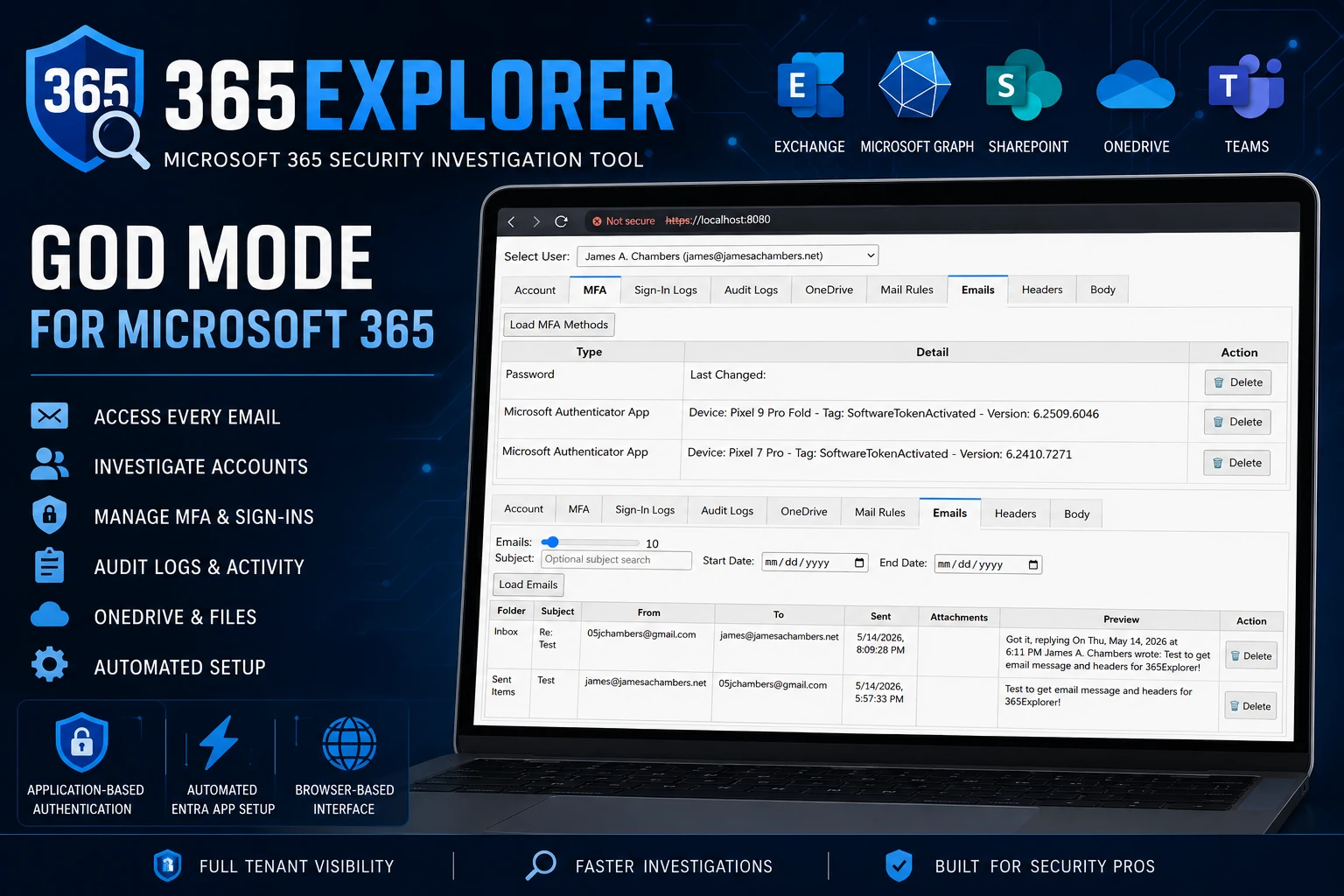
365Explorer is now available as a PowerShell module designed to make Microsoft 365 security investigations faster, simpler, and far less painful than the usual Entra admin workflow. It runs a local web server and gives you a browser-based interface that feels closer to a security console than a traditional PowerShell script.
At its core, 365Explorer is built around application-based authentication using Microsoft Graph and Exchange Online, giving administrators a level of access that normally takes a lot of manual setup or higher-tier licensing to achieve.
365Explorer is a browser-based Microsoft 365 investigation tool that runs locally on https://localhost:8080. It is powered by app-only authentication using a self-signed certificate and automates the entire Entra application setup process.
Instead of manually building an app registration in Microsoft Entra ID, assigning permissions one by one, and then granting admin consent, the module handles all of that automatically when you run it.
The goal here is simple: reduce friction during security investigations and give administrators direct access to tenant-wide data without jumping between multiple admin portals.
How does 365Explorer differ from regular PowerShell and delegated admin rights?
The biggest difference is the authentication model and the scope of access.
With delegated admin rights in tools like Microsoft Graph or Exchange Online, you are often limited by the user context and licensing constraints. Some data simply is not available unless you have specific licenses or go through extra admin steps.
365Explorer uses application-based authentication instead. That changes what is possible in a practical sense.
One of the most important examples is email access. With delegated access, pulling all mail across a tenant is often restricted, slow, or tied to E5 licensing features. With 365Explorer, you can browse and search across all user mailboxes in the tenant and even delete messages directly from the interface.
That alone makes it significantly more useful during incident response scenarios.
What does 365Explorer automate in Entra app setup?
Normally, setting up a properly permissioned application in Microsoft 365 involves:
Creating an app registration in Entra
Configuring API permissions for Graph, Exchange, and SharePoint
Assigning application roles
Granting admin consent
Managing certificates or secrets
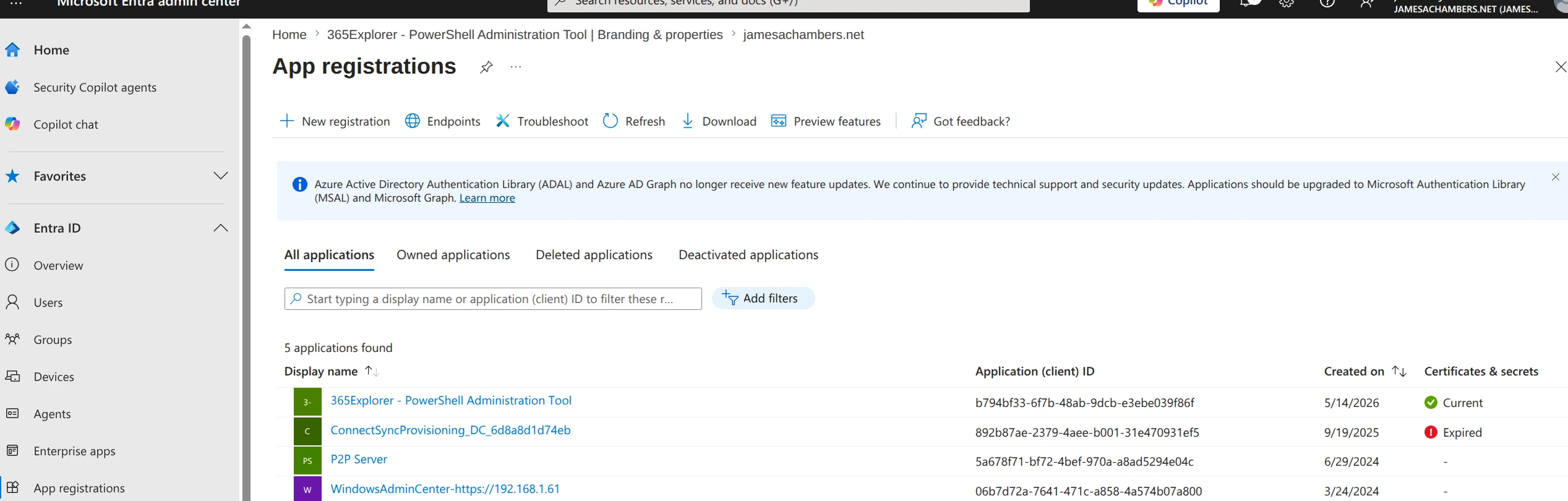
365Explorer automates all of this. If you log into Entra it will look like this:
365Explorer – Entra App Registration
Above you can see how the permissions work in Entra. If you go into “App registrations” you will see the 365Explorer app after running it.
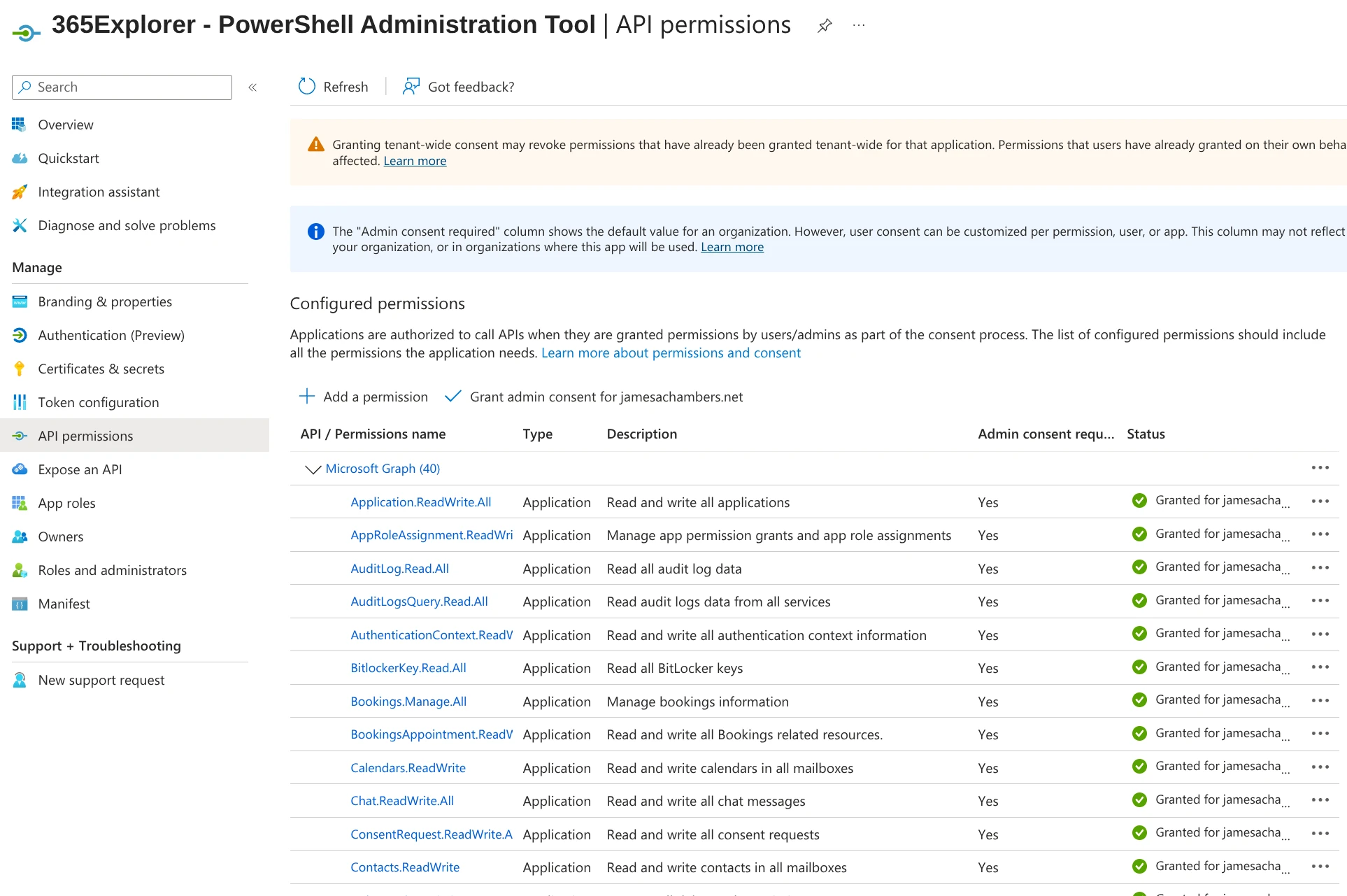
This is what the permissions look like:
365Explorer – Entra App Permissions
If you have ever had to create one of these by hand (typically for a script that requires application rights such as reading emails or other sensitive operations) you know how much of a pain it is.
When you run Invoke-365Explorer, it creates an application named 365Explorer – PowerShell Administrator Tool, assigns all required permissions, and grants admin consent automatically.
This is one of the biggest time savers in the entire tool.
What can you do with 365Explorer that you cannot easily do otherwise?
A few standout capabilities include:
You can access every email in the tenant without needing E5 licensing or building complex compliance searches. You can also delete emails directly from the interface, which is particularly useful during active compromise investigations.
You can browse OneDrive for Business files across the entire organization, search them, download them, or remove them.
You can inspect and remove suspicious MFA methods that attackers often add after account compromise.
You can review and delete malicious mail rules, which are a common persistence technique in email breaches.
And you can do all of this from a single browser-based interface instead of switching between multiple admin portals.
What are the main tabs in the 365Explorer interface?
What does the Account tab show?
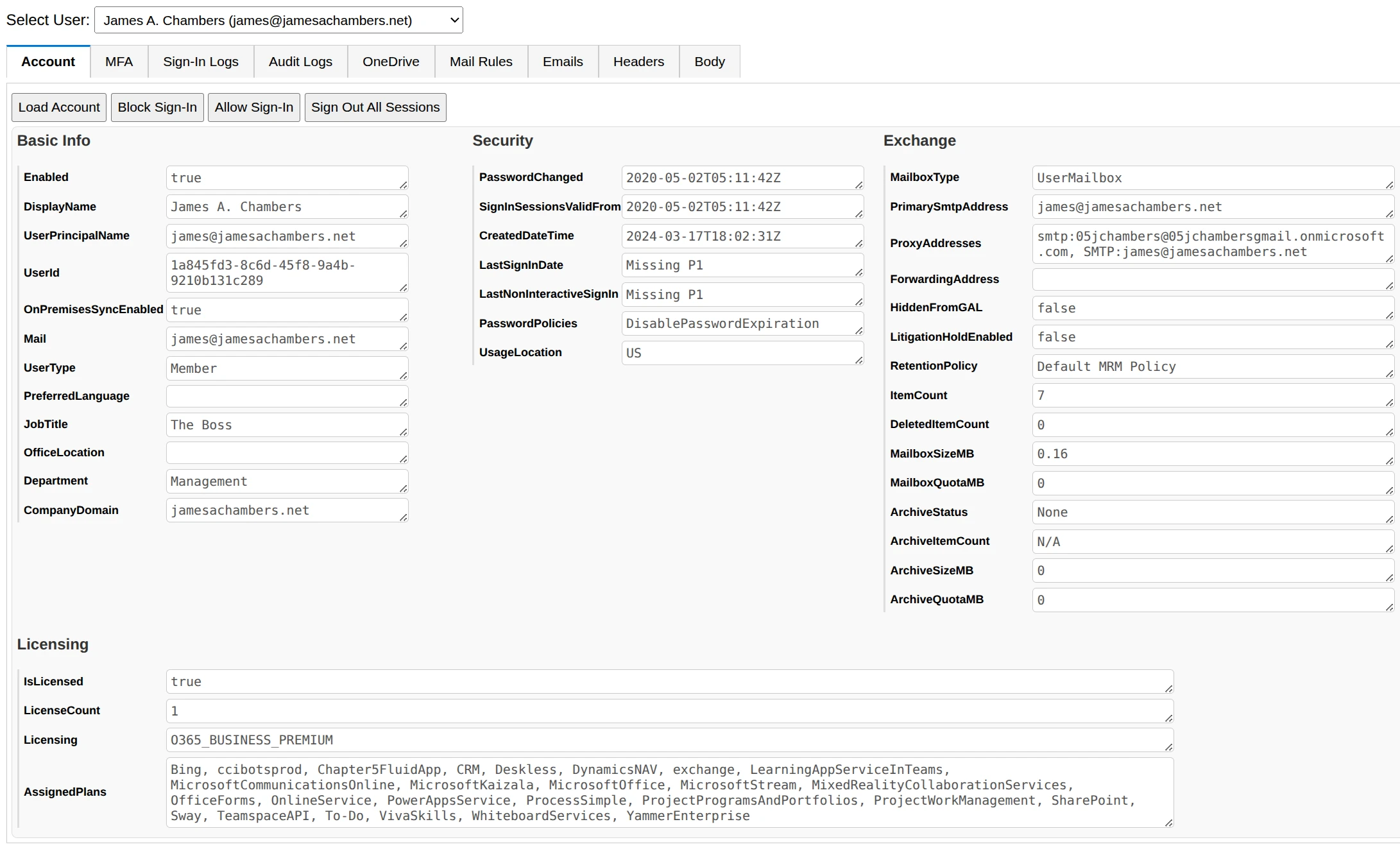
365Explorer – Account Tab
The Account tab pulls together user information from both Exchange and Graph. It shows account attributes, licensing details, and assigned service plans.
It also includes quick action buttons that let you:
Block or unblock sign-in
Sign out all active sessions
Review license assignments
This is often the first place to look when investigating a compromised account.
What is the MFA tab used for?
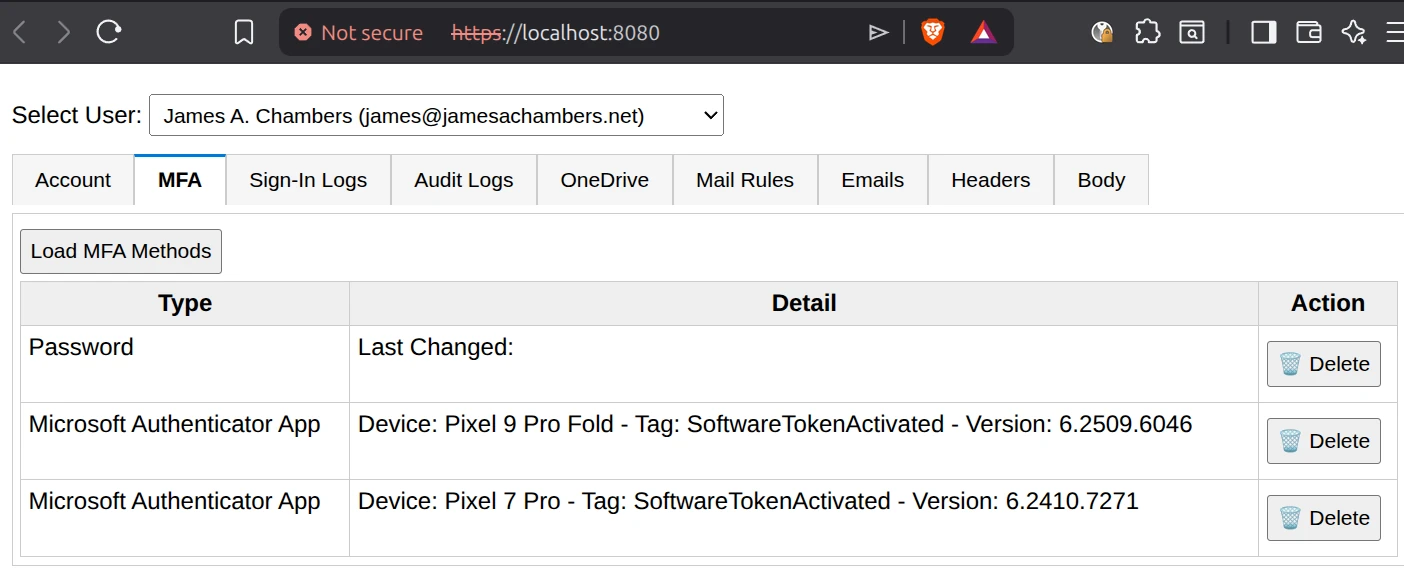
365Explorer – MFA Tab
The MFA tab is focused on multi-factor authentication methods attached to a user.
It is extremely common in compromised accounts to find additional authenticators added by an attacker. This can include phone numbers, authenticator apps, or other verification methods.
365Explorer makes it easy to review and remove suspicious entries with a single click.
How do Sign-In Logs work in 365Explorer?
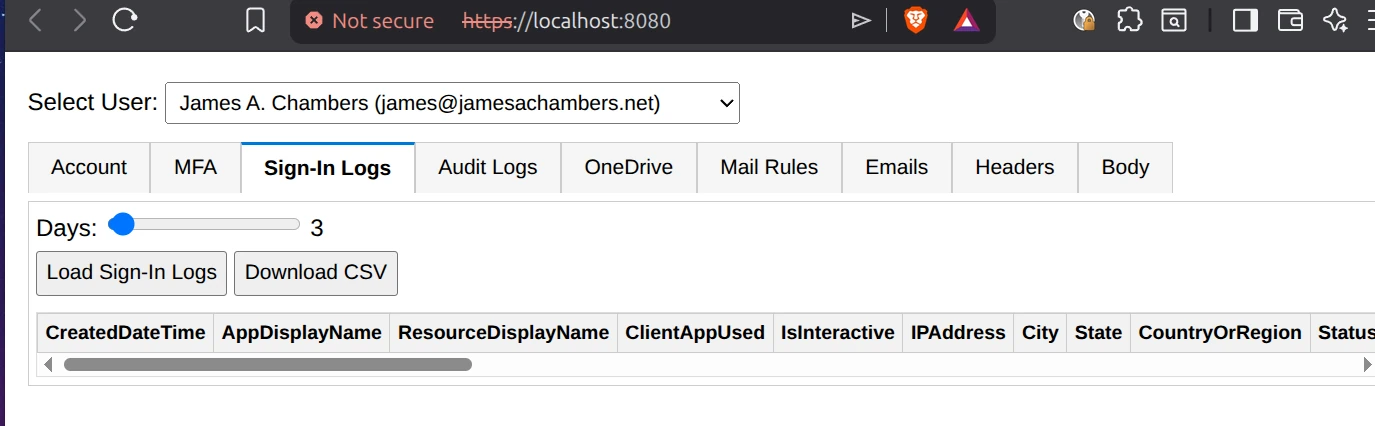
365Explorer – Sign-In Logs Tab
The Sign-In Logs tab pulls authentication activity from the tenant.
One important requirement is that the tenant must have at least one Microsoft Entra ID P1 available somewhere in the organization. It does not need to be assigned to the admin using the tool.
Without it, fields such as LastSignInDate and LastNonInteractiveSignIn will return as missing.
Even without PowerShell access, the same data can still be viewed in the Entra admin portal.
What is included in the Audit Logs tab?
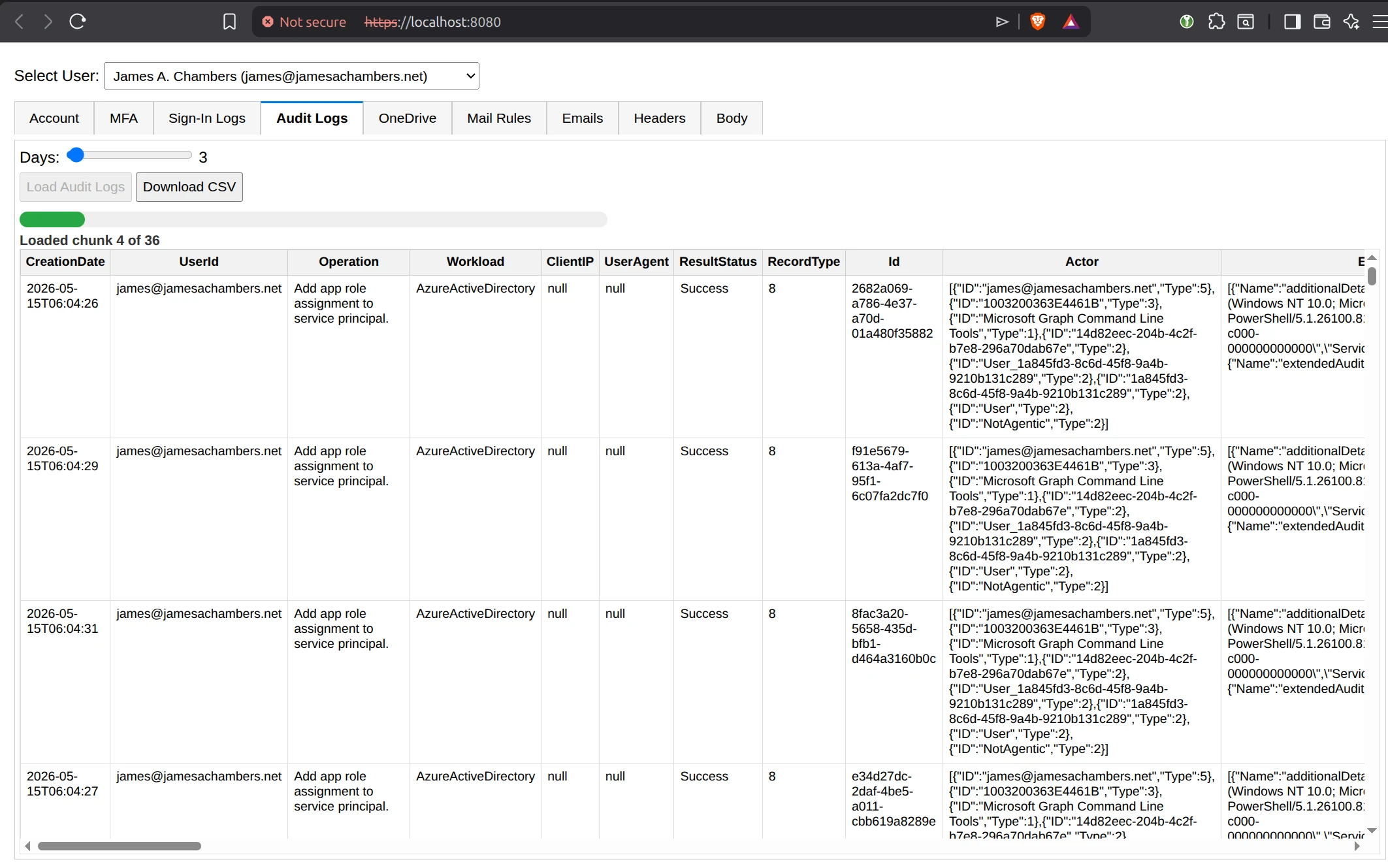
365Explorer – Audit Logs Tab
The Audit Logs tab uses the Unified Audit Log from Microsoft 365. This feature is free but must be enabled once per tenant.
If it is not enabled, 365Explorer will attempt to enable it automatically using organization configuration settings.
Keep in mind that once enabled, it can take 8 or more hours before data starts appearing. If you see a “Bad Request” error initially, it usually just means the ingestion process is still warming up.
A very useful feature of the audit logs browser is that it will break out the “Extended Data” attributes into the table. There is a convenience button to export to a CSV for very large reports!
What can you do in the OneDrive tab?
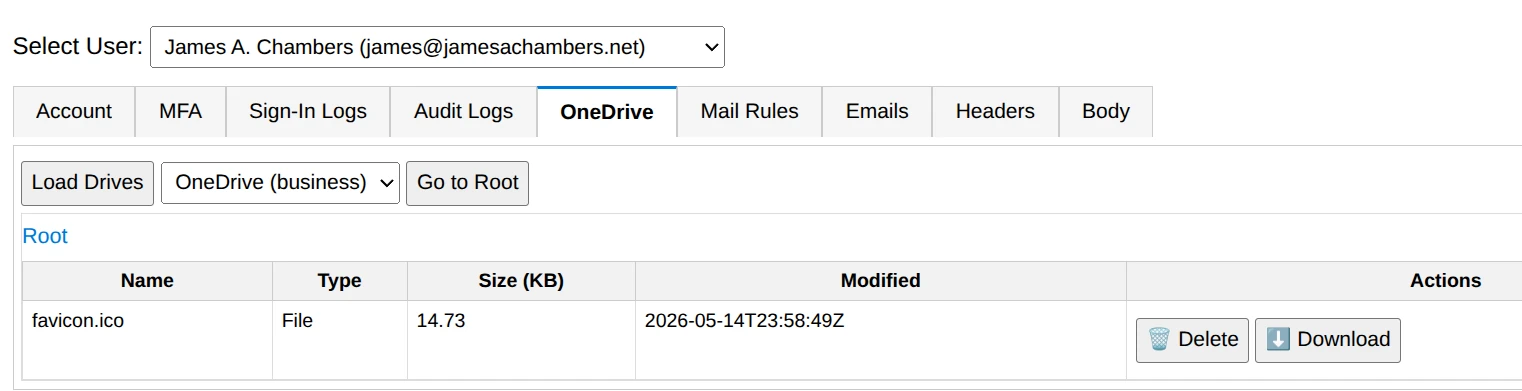
365Explorer – OneDrive Tab
The OneDrive tab allows browsing of all OneDrive for Business files across users in the tenant. Because OneDrive is closely tied to SharePoint, this effectively gives visibility into a large portion of user-generated content.
Files can be downloaded or deleted, with deleted items moving to the recycle bin.
What is the Mail Rules tab for?
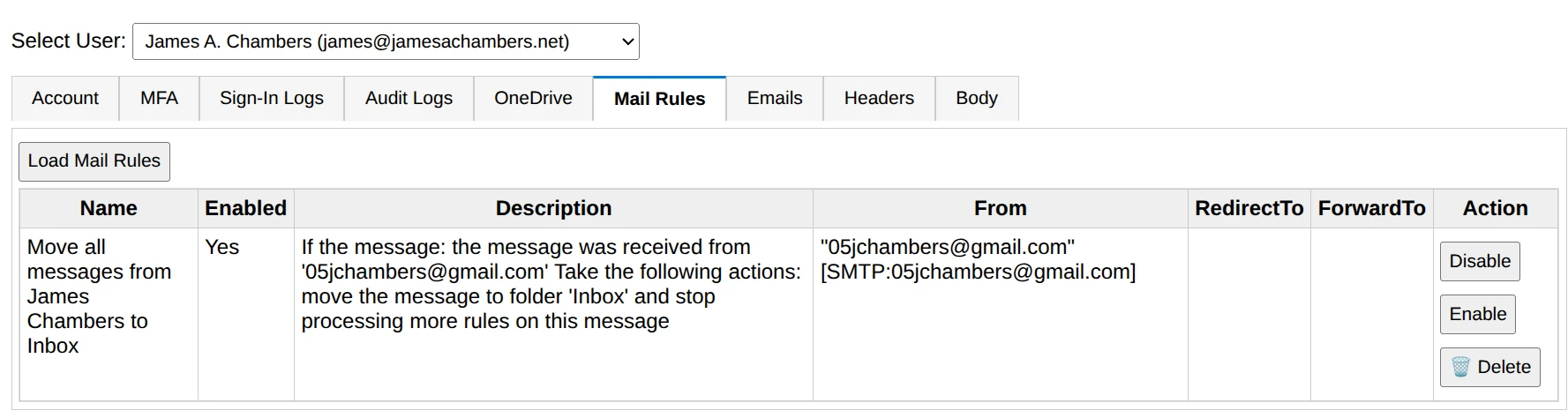
365Explorer – Mail Rules Tab
The Mail Rules tab lists all inbox rules for a user.
This is a high-value investigation area because malicious inbox rules are frequently used in email compromise cases to silently forward, hide, or delete messages.
365Explorer allows you to quickly identify and remove suspicious rules.
How does the Emails tab work?
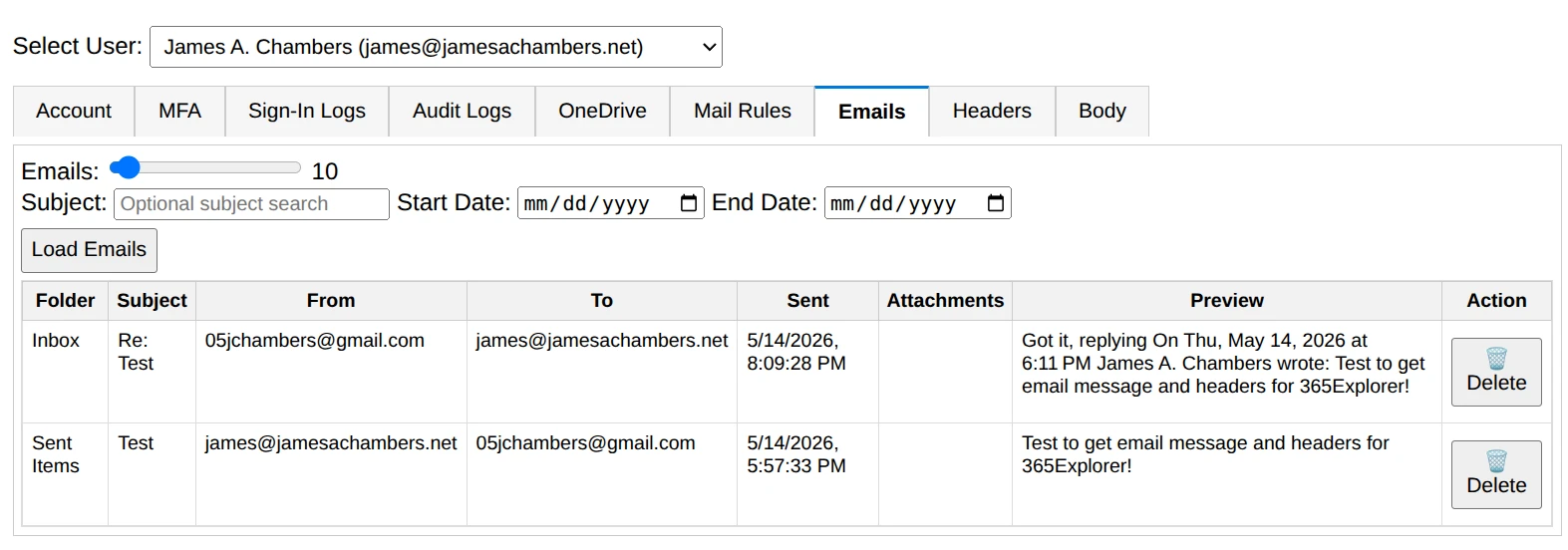
365Explorer – Emails Tab
The Emails tab lets you browse mailbox content for individual users.
You can:
Search by subject
Filter by date range
Pull between 1 and 200 messages at a time
Delete selected emails
This is especially useful when tracking phishing campaigns or identifying malicious message delivery.
What are the Headers and Body tabs used for?
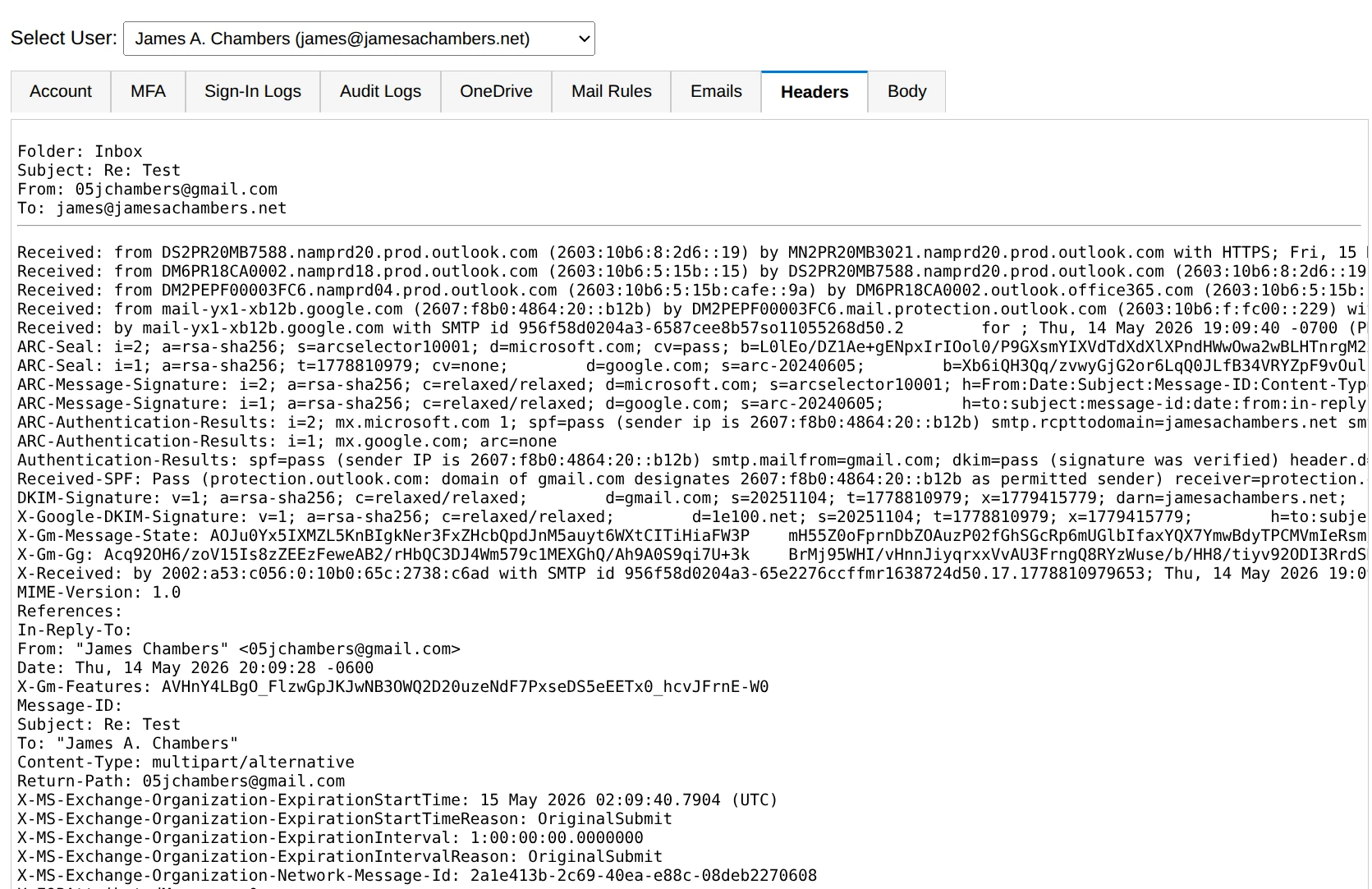
365Explorer – Headers Tab
The Headers tab displays full raw email headers for a selected message. This is useful for tracing routing paths, spoofing attempts, or phishing indicators.
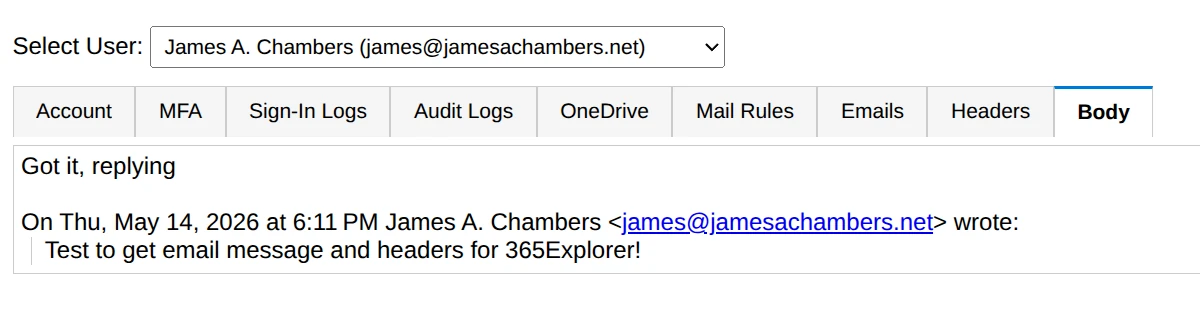
365Explorer – Body Tab
The Body tab simply renders the message content so you can review it directly inside the interface.
On first run, it generates a self-signed certificate and stores it in the system temp directory as 365Explorer.pfx. It then uses this certificate to authenticate the application against Microsoft 365.
If the tool is run again on the same machine, it reuses the certificate to speed up startup. If it is run on a different machine, a new certificate is created and a new app registration is generated.
If multiple administrators need to use the same setup, the certificate can be shared between machines by copying it from the temp folder. If this becomes a big obstacle let me know in the comments as better ways to handle this could be added in the future.
How do you install 365Explorer?
365Explorer is published to the PowerShell Gallery and can be installed with a single command:
Install-Module 365Explorer
Once installed, launch the interface with:
Invoke-365Explorer
That single command handles everything, including dependencies, app registration, permissions, and launching the local web server.
What are the requirements to run 365Explorer?
To run 365Explorer, you need:
PowerShell 5.1 or later, PowerShell 7 is highly recommended
Global Administrator access in your Microsoft 365 tenant
A supported Microsoft 365 environment
Optional but recommended: at least one Microsoft Entra ID P1 for sign-in log access
It works on both Windows and Linux environments as long as the required modules are supported.
Is it compatible with Macs? I don’t know. It depends how similar they still work to Linux under the hood I suppose. I don’t have a modern one to test with. If someone with a Mac wants to test it (and if you find any issues) I would definitely attempt to fix it if you find problems (or accept a pull request)!
What dependencies does 365Explorer use?
The module automatically installs and manages its dependencies, including:
Pode for the browser-based interface
Microsoft Graph for tenant-wide data access
Exchange Online for mailbox operations
PowerShellGet for module installation and updates
It also checks for updates automatically against the PowerShell Gallery on each run.
365Explorer is designed for one main purpose: making Microsoft 365 security investigations faster and more direct.
Instead of navigating multiple portals or writing complex PowerShell scripts for every investigation, you get a single browser interface that can access mailboxes, audit logs, MFA methods, OneDrive files, and account data in one place.
It is not trying to replace Microsoft’s admin tools. It is meant to sit alongside them and remove the friction that slows down real investigations.
Or let me put this another way: the hackers are using application rights against you in compromises. Common ones that I’ve seen in compromises are things using Enterprise App permissions such as “eMClient” and abusing those privileges to do the exact same things this tool can do.
The tool is a way for you to use application rights for good by responding to incidents faster and more effectively than you would be able to otherwise!